In the vast world of SEO, duplicate content is an invisible “rank killer.” Whether it’s a portfolio category or a specific service page, having multiple URLs with similar content confuses search engines. This is where the Canonical Tag acts as your site’s North Star.
What is a Canonical Tag?
A canonical tag (rel=”canonical”) is an HTML element that tells search engines which version of a URL you want to appear in search results. It consolidates “ranking signals” from duplicate pages into one single, authoritative URL.
🛠 How Canonical Tags Work: The Technical Breakdown
When Google crawls your site, it looks for the link rel=”canonical” tag in the <head> section of your code.
1. In HTML Code
For developers or those editing themes directly, the implementation looks like this: <link rel=”canonical” href=”https://getdigitalmarketingservice.com/portfolio/” />
2. In WordPress (Yoast/RankMath)
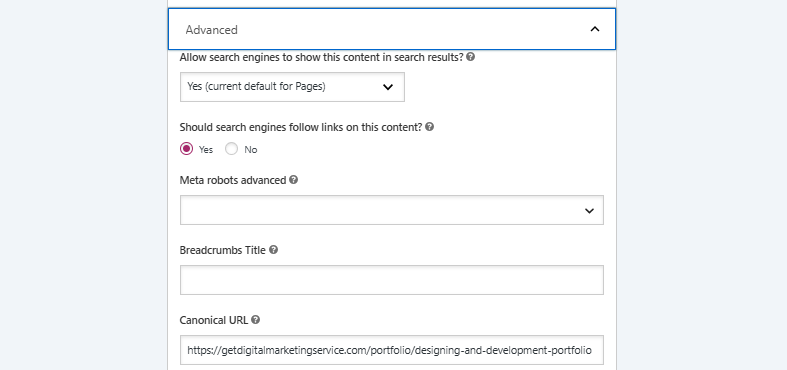
As shown in your provided screenshot, WordPress makes this incredibly user-friendly. In the Advanced SEO settings of a page or post, you will find the Canonical URL field.
Pro-Tip: If you leave this blank, most SEO plugins will “self-reference” the current URL. You only need to fill this in if you want the current page to point toward a different master page.
Canonical Logic: Categories vs. Pages
The strategy changes slightly depending on what part of your site you are optimizing.
Canonical Tags on Pages
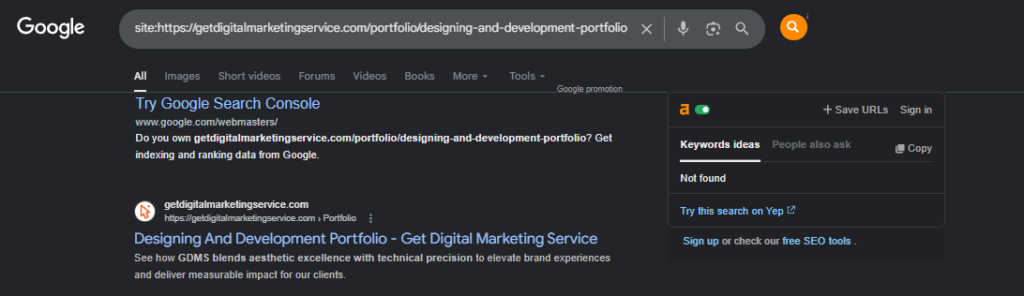
Pages are often the “final destination” for a user. In your second image, we see a specific page: …/portfolio/designing-and-development-portfolio
If this page was accessible via two different paths (e.g., through a “Services” folder and a “Portfolio” folder), you would use the canonical tag to tell Google: “No matter how you found this, the Designing and Development page is the official version.”
Canonical Tags on Categories
Categories (like a Portfolio overview) often suffer from pagination issues (Page 1, Page 2, etc.).
- The Goal: You want the main Category page to hold the ranking power.
- The Process: You would set the canonical of /portfolio/page/2/ back to the main /portfolio/ URL if the content is substantially the same, or use self-referencing tags if the content is unique enough to be indexed separately.
🔍 With vs. Without: Analyzing the SERP Results
Your search results demonstrate exactly why this matters. Let’s look at the “Before and After” logic using your provided SERP images.
❌ Without Proper Canonicalization
Without a clear canonical directive, Google’s search results can look cluttered. You might see:
- Multiple versions of the same portfolio link.
- Google “guessing” which title tag to show.
- Diluted click-through rates because users are split between two identical results.
✅ With Canonicalization (The “Site:” Command Result)
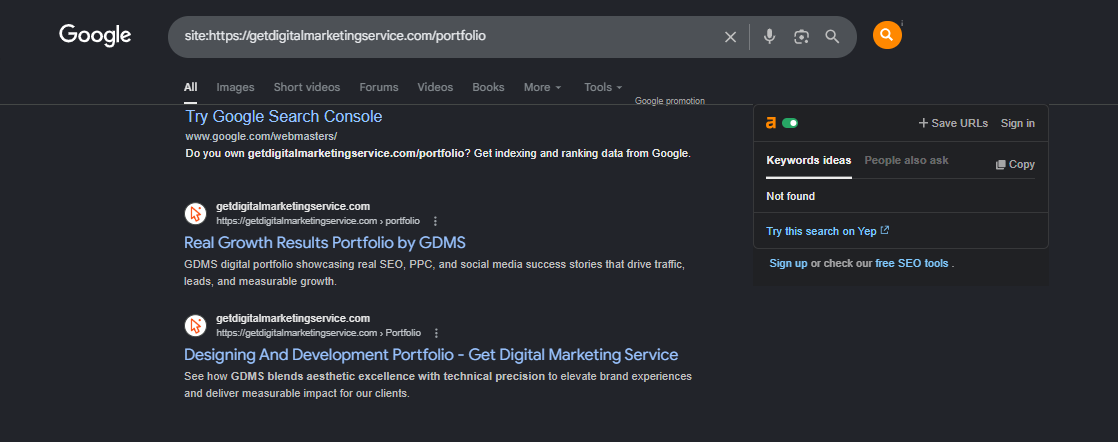
In your screenshot of the site: search for getdigitalmarketingservice.com/portfolio, we see a clean, organized hierarchy.
| Observation | Impact |
| Consolidated Results | Google shows the specific “Designing and Development Portfolio” page as a distinct, indexed entity. |
| Clean Snippets | Because the canonical is set, Google knows exactly which metadata (Title and Description) to pull for the SERP. |
| Zero Conflict | The main portfolio and the sub-portfolio pages aren’t competing; they are co-existing as separate, authoritative pages. |
Final Summary
Implementing a canonical tag is like giving Google a map to your most important content.
- In WordPress: Use the “Advanced” tab to set your preferred URL.
- In Code: Ensure the tag lives in the <head> section.
- For Strategy: Use them to prevent categories from competing with pages.
By taking control of your canonicals, you ensure that your “Real Growth Results” aren’t just hidden in your code, but are front and center on the Google Search results page.